This documentation will describe how to Install Osclass on IBM Cloud.
Requirements/Prerequisites
You will need an IBM Cloud Pay-As-You-Go or Subscription Account type which can be found here.
Introduction
This docs will describe how to install Osclass on IBM Cloud. These four steps will be needed as follows:
- Step 1: Provision Kubernetes Cluster
- Step 2: Deploy IBM Cloud Block Storage plug-in
- Step 3: Deploy Osclass
- Step 4: Verify Installation
So let's get started.
Step 1: Provision Kubernetes Cluster
- Search for Kubernetes and select Kubernetes Service from the list.
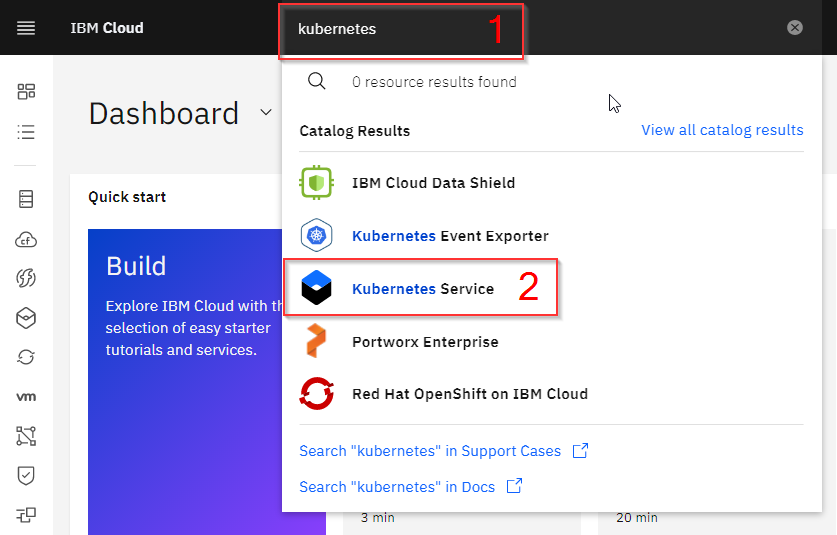
You will be redirected to the Kubernetes cluster creation page.
Option A: Create free Kubernetes Engine:
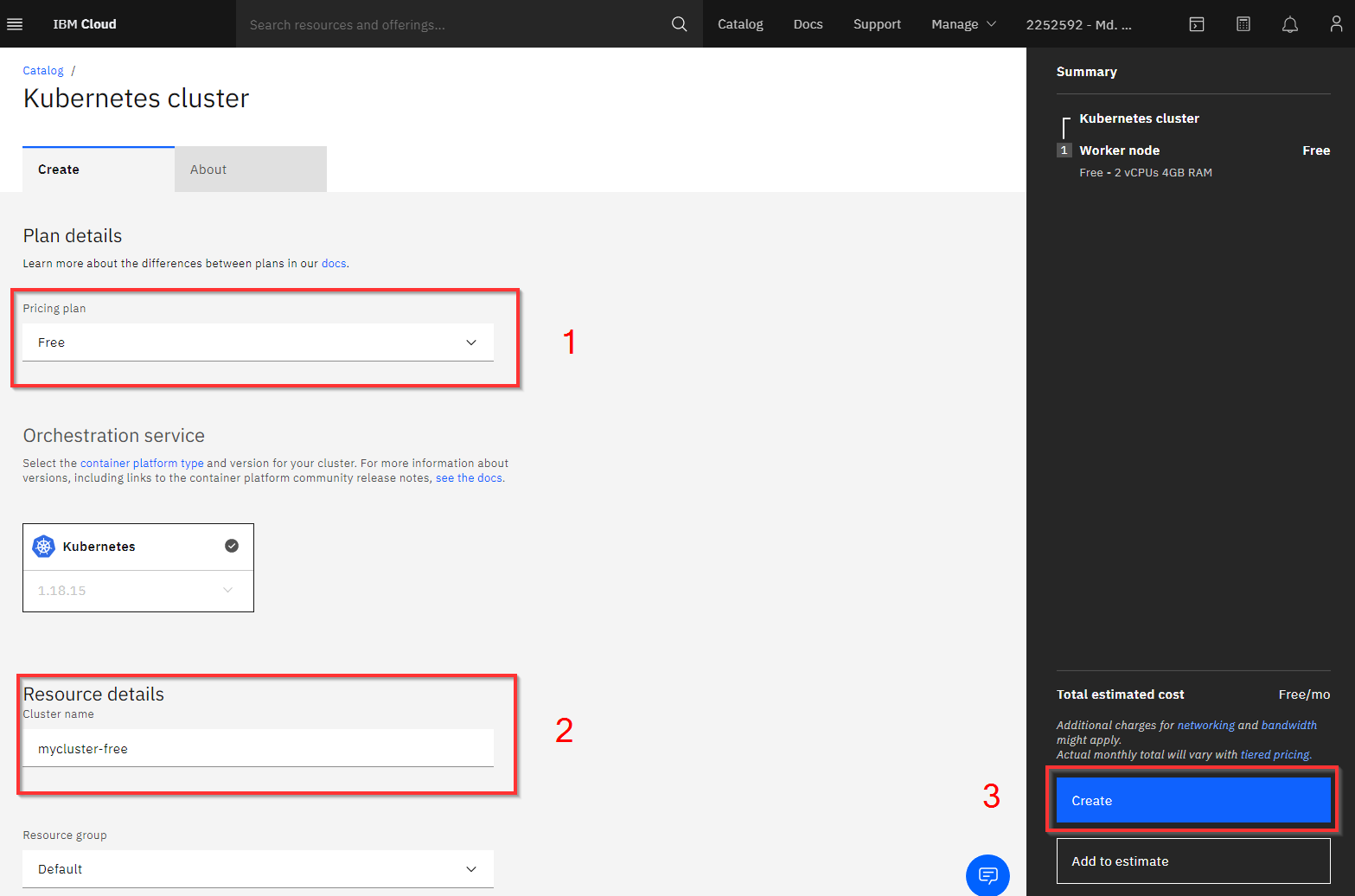
Enter the cluster name of your choice then click Create to provision the free Kubernetes Cluster.
Please wait for few moments to provision the cluster.
Option B: Create Standard Kubernetes Engine with the following attributes:
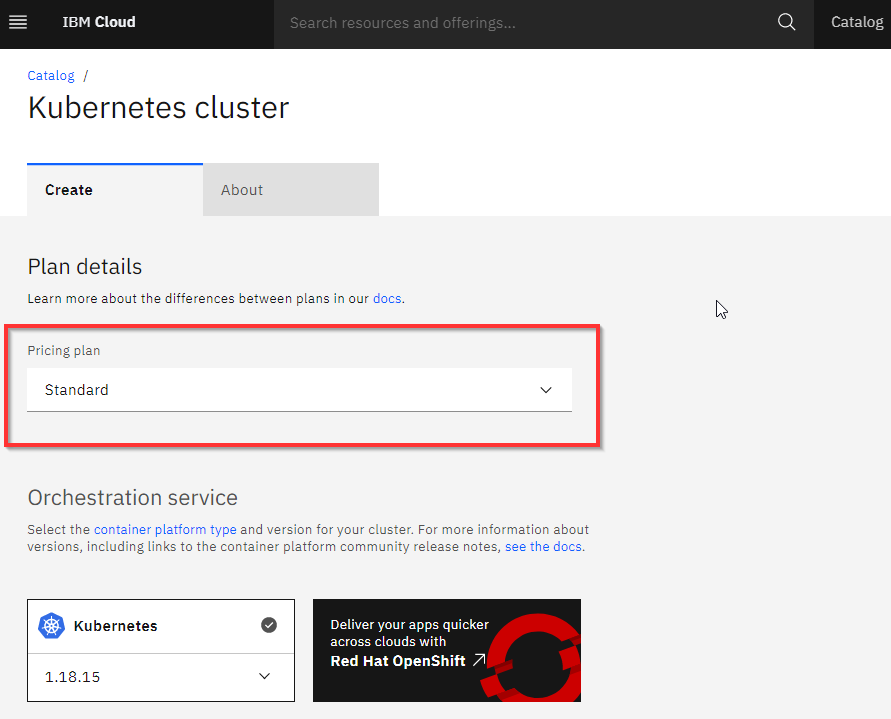
- Infrastructure: Classic
- Availability: Multi Zone
- Metro: Dallas
- 4 VCPU
- 16 GB RAM
- Worker nodes per zone: 3
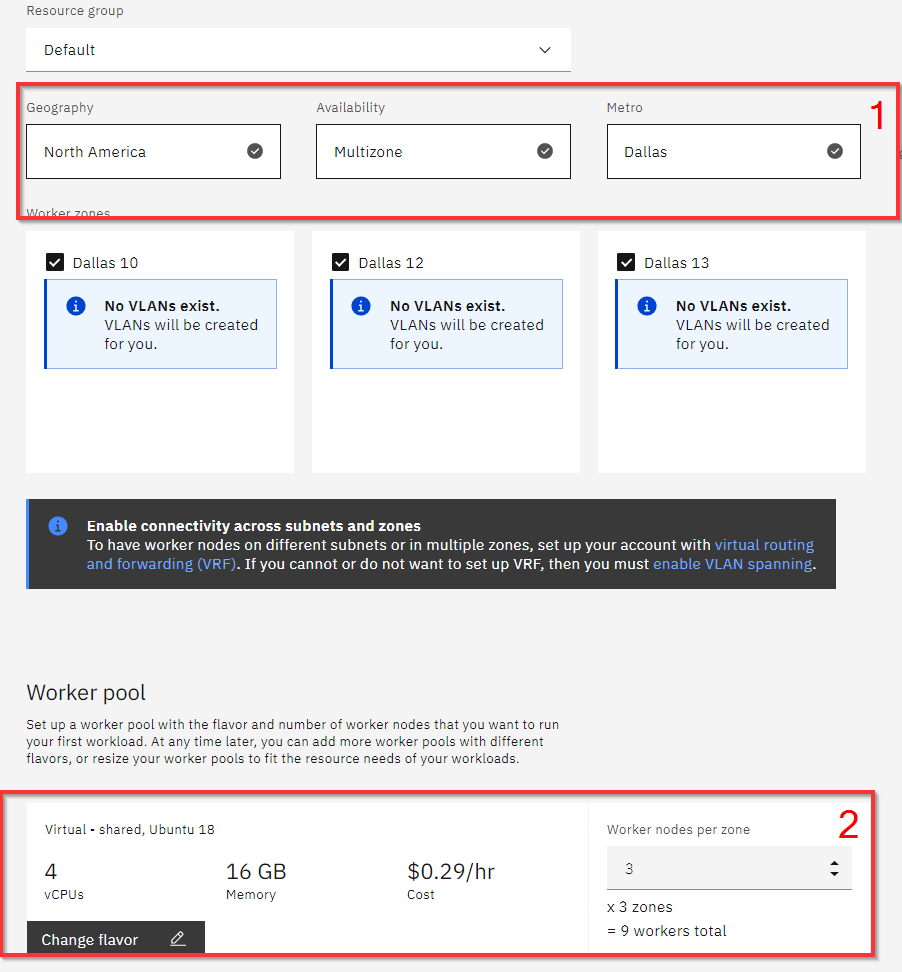
Enter the cluster name of your choice then click Create to provision.
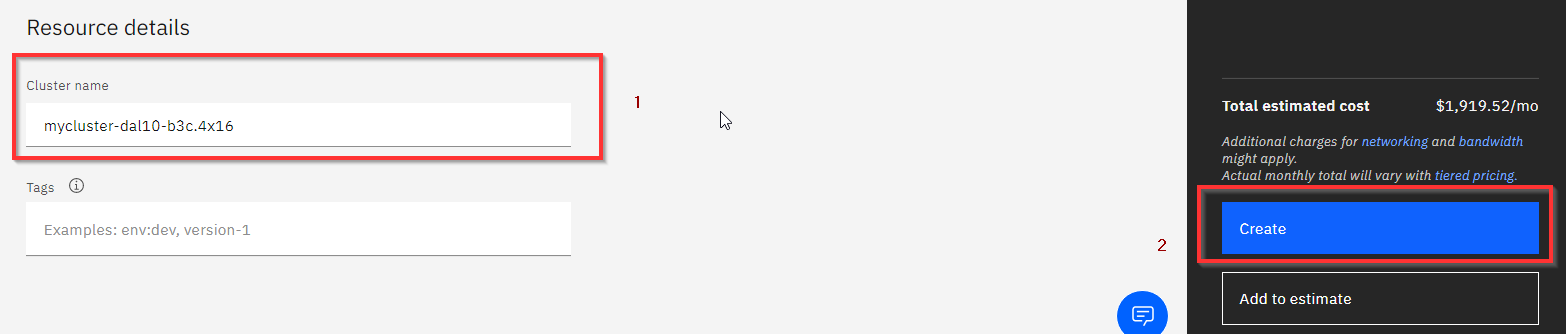
Please wait for a few moments to provision the cluster.
Step 2: Deploy IBM Cloud Block Storage plug-in
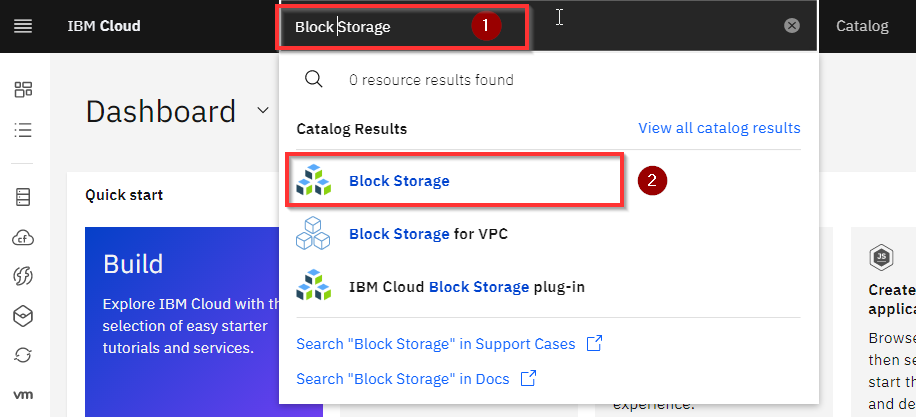
- Just like in step 1, search for "Block Storage" and Click on it.
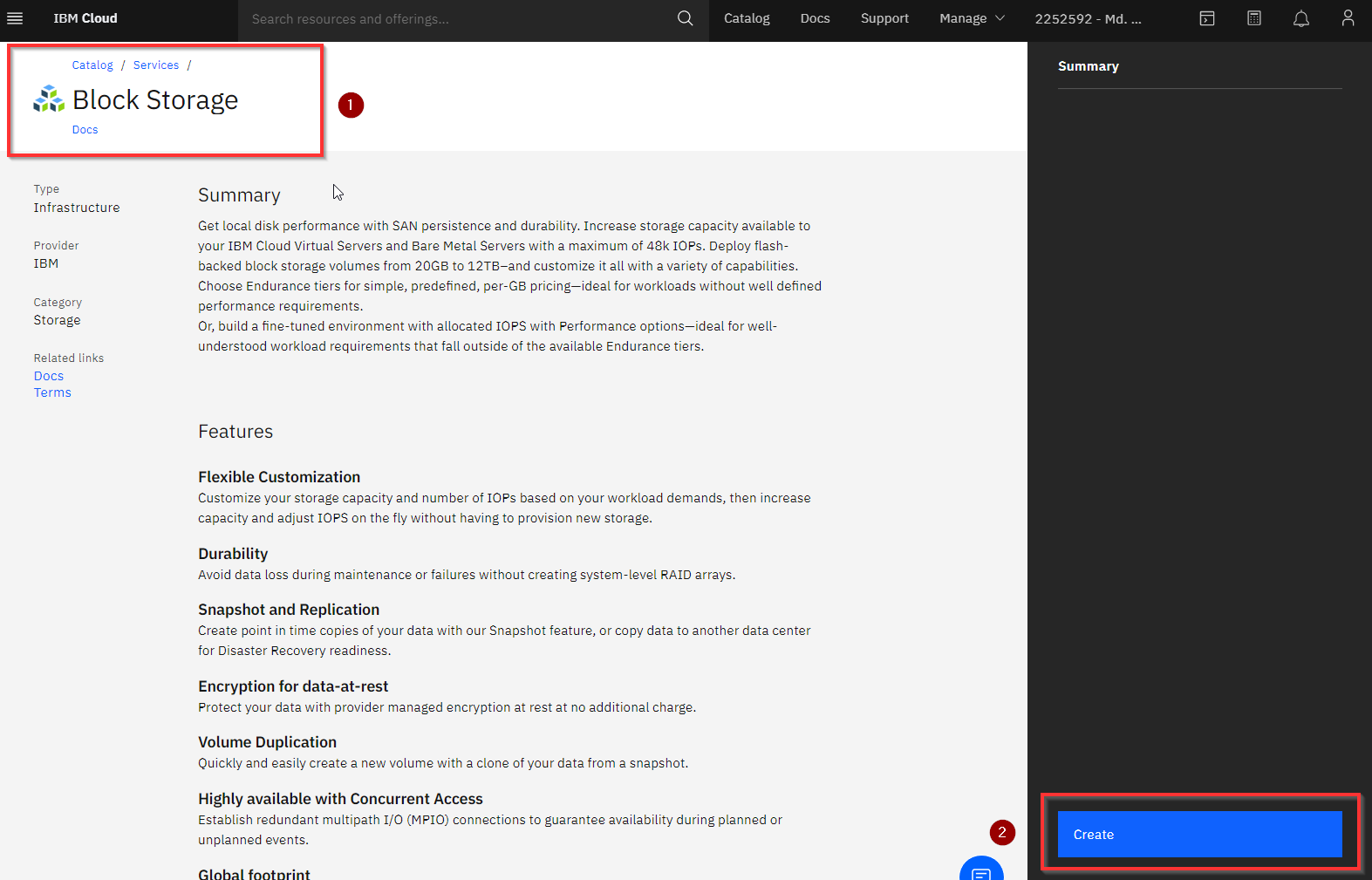
- On the Block Storage page click on Create
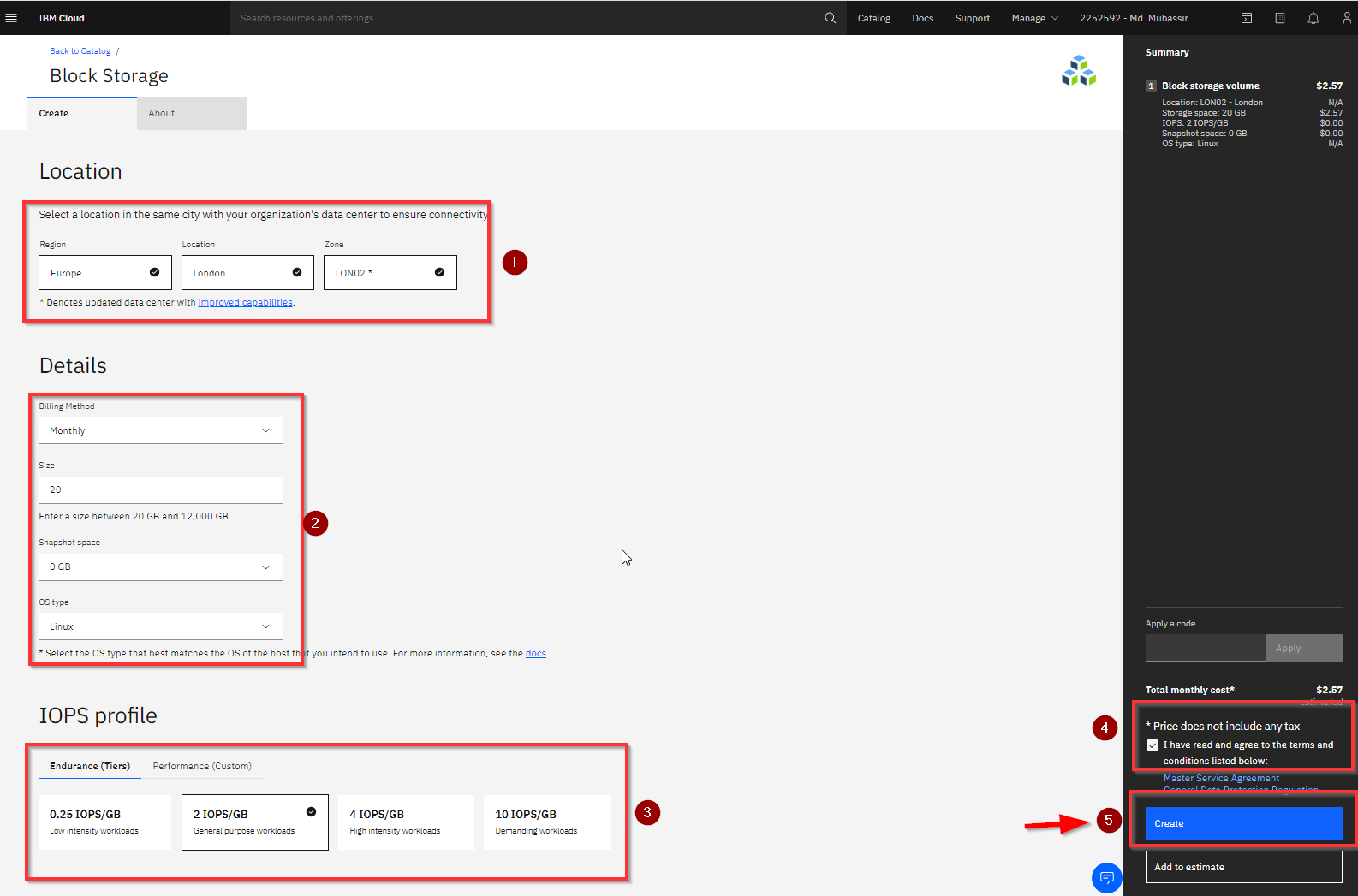
- Now input the storage details
N.B. Select location as the cluster location.
-
Location > Europe > London > LON02
-
Billing Method > Monthly > 20 GB
-
OS type > Linux
-
IOPS > 2 IOPS/GB
-
Click on “I have agreed to the terms and conditions listed below”.
Now a storage plugin will be available in the dashboard.
Step 3: Deploy Osclass
- Again Search for Osclass and Click on it.

You will be taken to the Osclass deployment page.
In the Osclass creation page add the details below:
- Target: IBM Kubernetes Service
- Method: Helm chart
- Kubernetes cluster: mycluster-free
- Target namespace: osclass
- Workspace: osclass
- Resource group: Default

- Check on “I have agreed to the terms and conditions listed below”.
Click Install to deploy Osclass.
Please wait for all the process to complete.

Step 4: Verify Installation
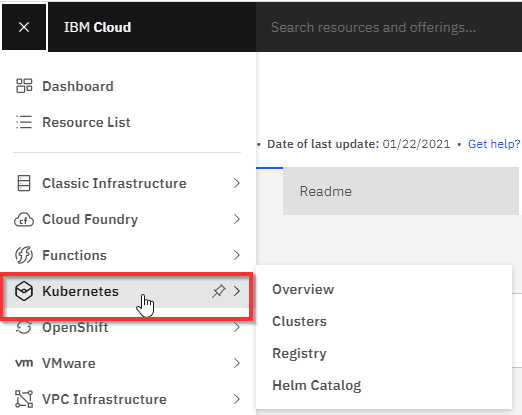
- Go to Left Navigation Menu.
- Click on Kubernetes
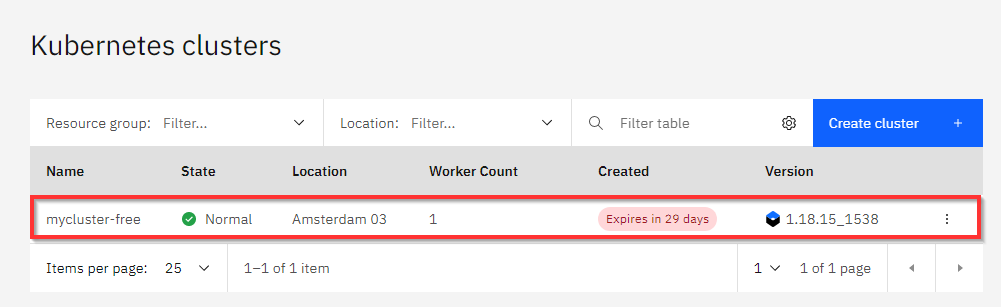
- Click on your Cluster "mycluster-free".
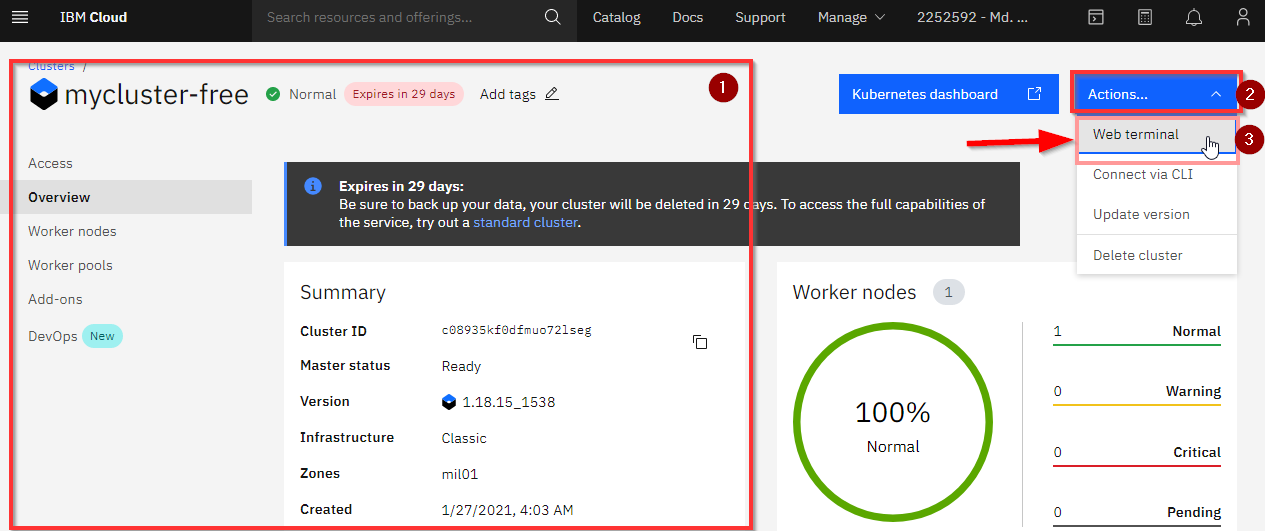
You will be taken to your clusters overview page where you will see the details of your cluster as well.
- To verify the installation find the Actions..
- Click on it and select
Web terminal from the dropdown menu.
Click install, then wait for a couple of minutes to finish the process.
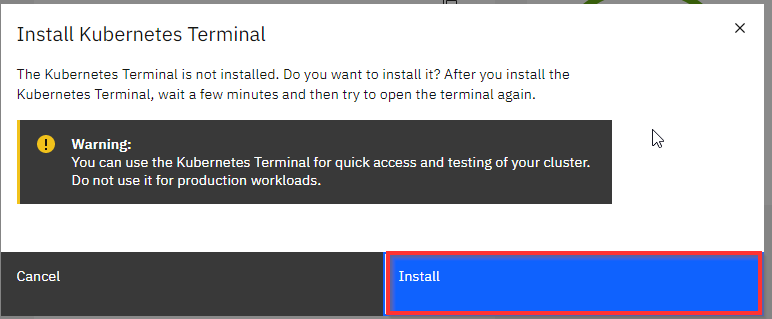
- After completing the installation click on Actions > Web terminal again.
A command line terminal will appear. Type the command below:
Get the list of pods:
kubectl get ns

See if it is running:
kubectl get pod -n osclass -o wide

The Installation is now done! Enjoy !
This documentation will describe how to Install Osclass on IBM Cloud.
Requirements/Prerequisites
You will need an IBM Cloud Pay-As-You-Go or Subscription Account type which can be found here.
Introduction
This docs will describe how to install Osclass on IBM Cloud. These four steps will be needed as follows:
So let's get started.
Step 1: Provision Kubernetes Cluster
Option A: Create free Kubernetes Engine:
Option B: Create Standard Kubernetes Engine with the following attributes:
Step 2: Deploy IBM Cloud Block Storage plug-in
Location > Europe > London > LON02
Billing Method > Monthly > 20 GB
OS type > Linux
IOPS > 2 IOPS/GB

Click on “I have agreed to the terms and conditions listed below”.
Step 3: Deploy Osclass
In the Osclass creation page add the details below:
Step 4: Verify Installation
Web terminalfrom the dropdown menu.Get the list of pods:
kubectl get nsSee if it is running:
kubectl get pod -n osclass -o wideThe Installation is now done! Enjoy !